Note: Because our official World Gate Network application is incredibly feature-rich, it needs to be sideloaded onto your Firestick using the Downloader app. Don't worry—this process is 100% safe, incredibly common, and very easy to do. Let's get started! Please Note that our service does not support Firestick Select version.
1 Power On Your Device
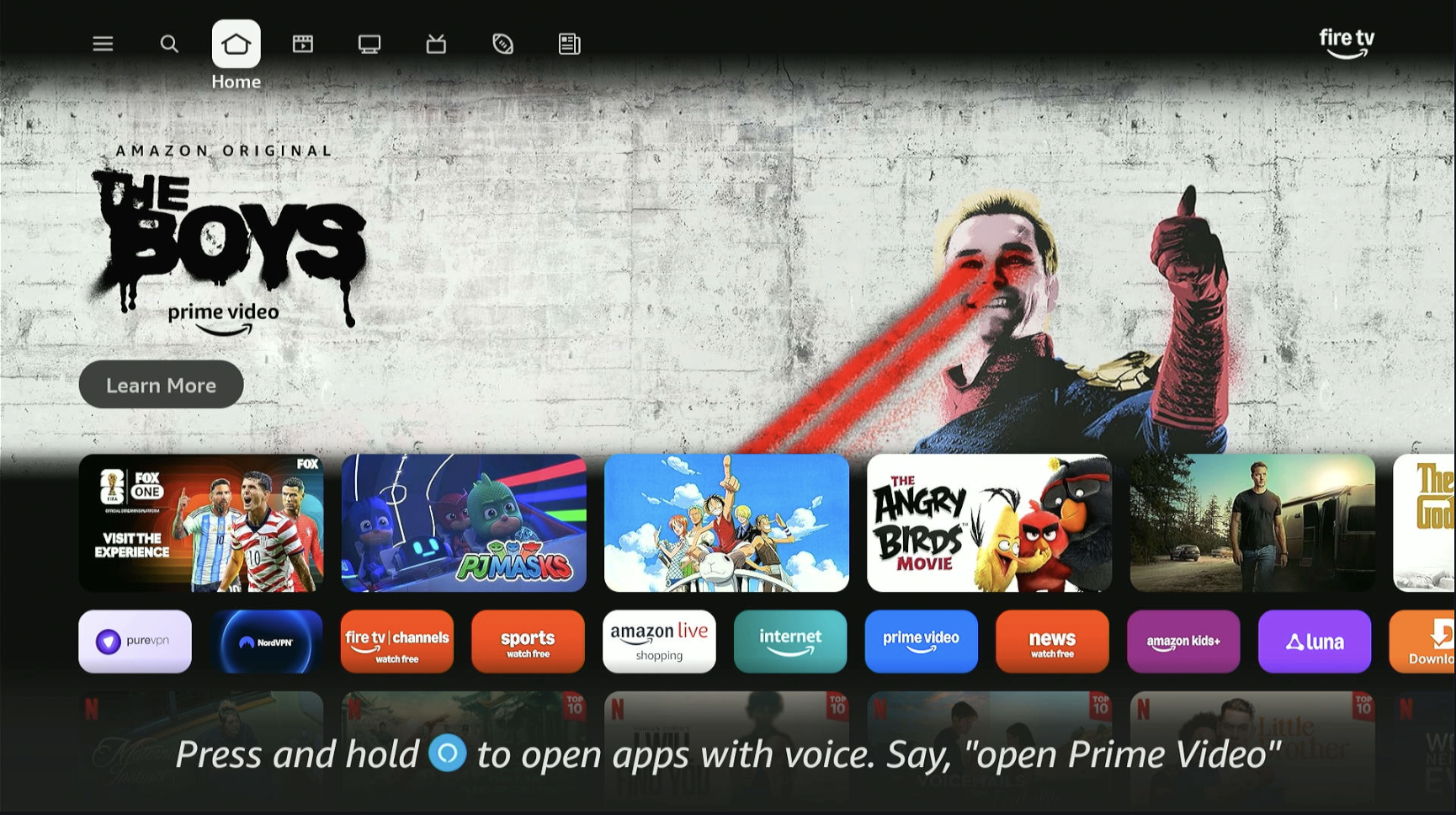
Turn on your Amazon Firestick and navigate to the main home screen.
2 Search for Downloader
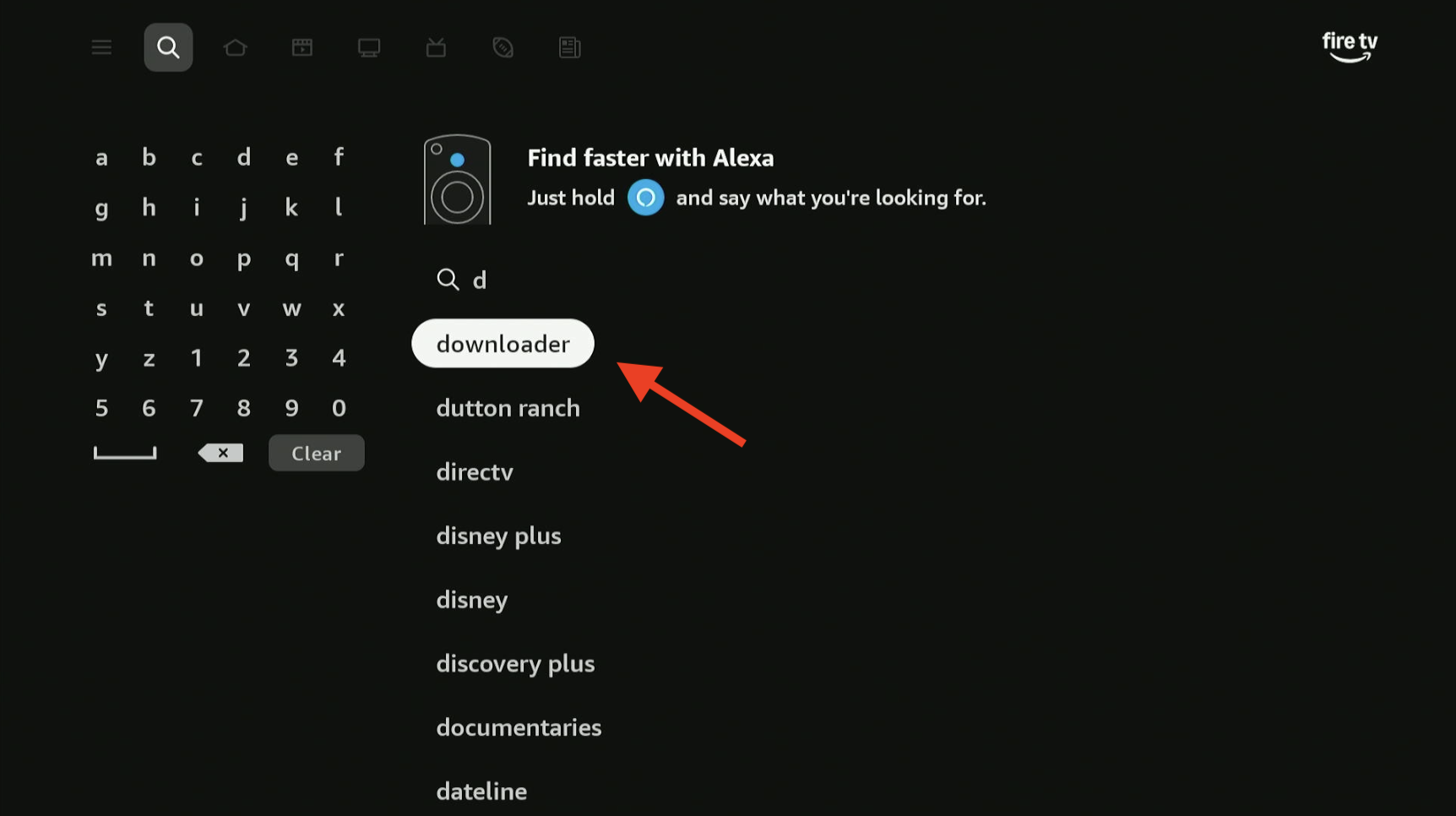
Move to the Find or Search magnifying glass icon on your menu and type "Downloader".
3 Select the App
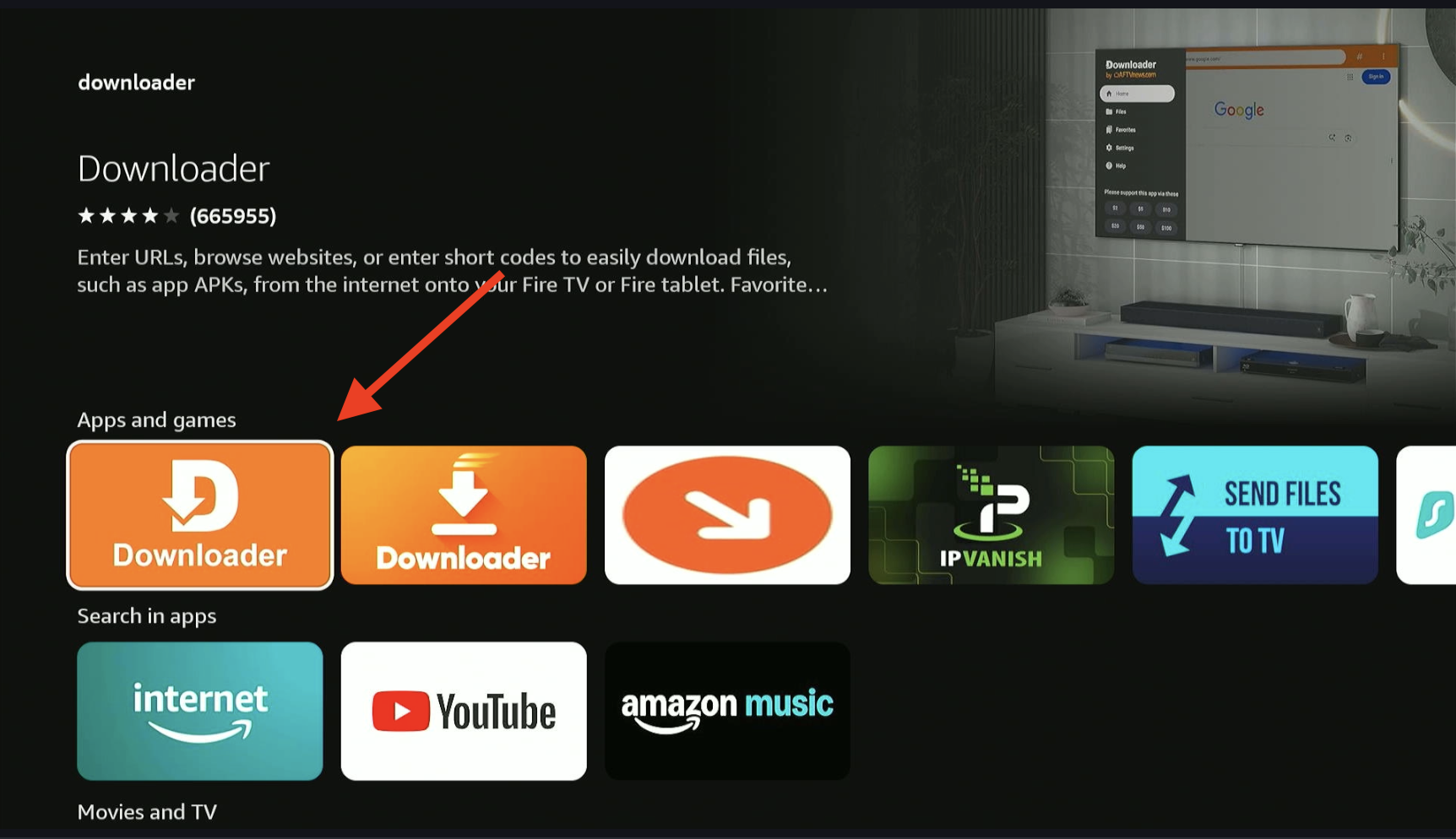
Select the official Downloader app from the search results (it features an orange background with a download arrow).
4 Install Downloader
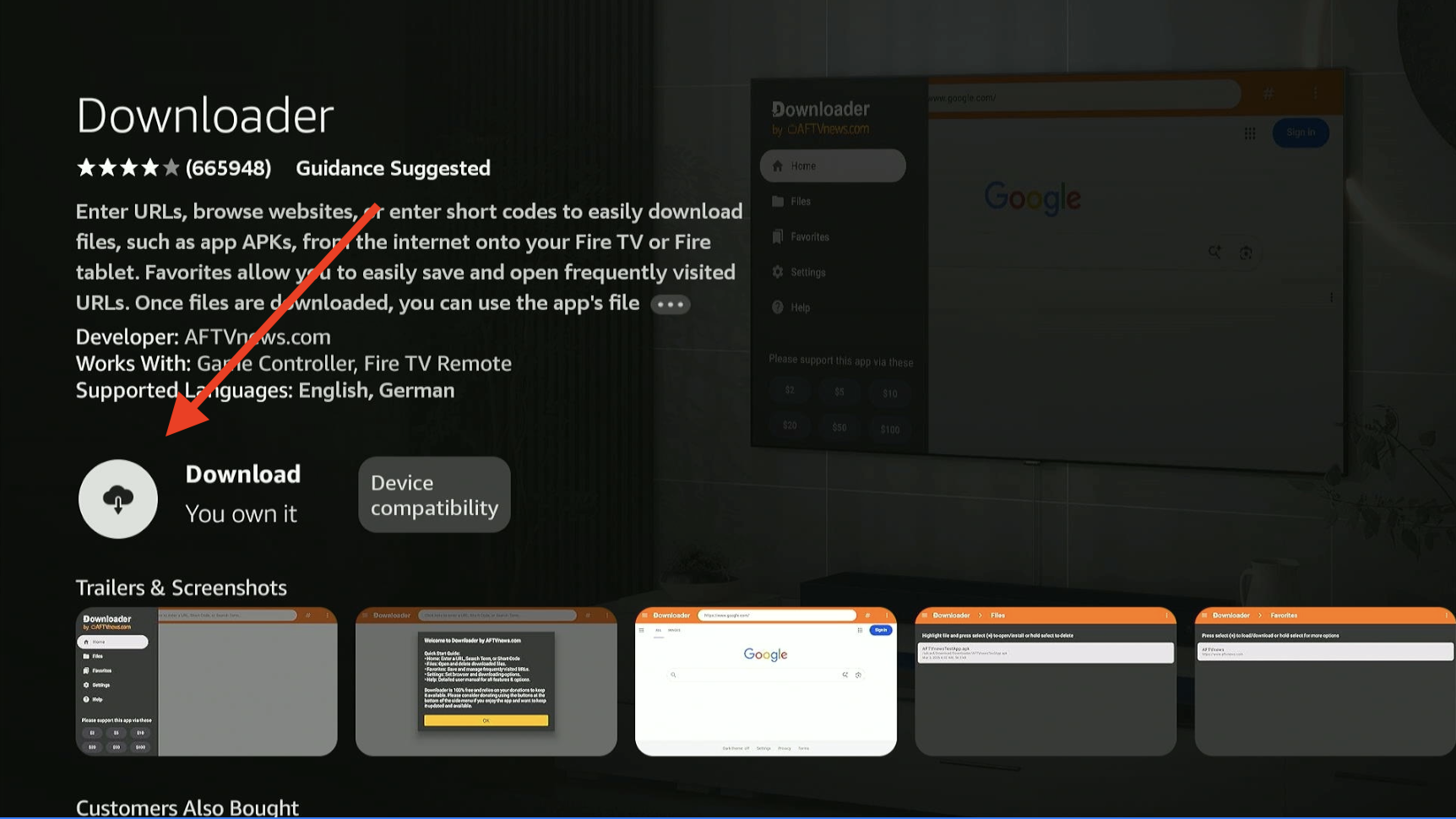
Click the Get or Download button to install the app onto your Firestick.
5 Navigate to Settings
Once installed, do not open it yet. Press the Home button on your remote, go to the far right, and select the Settings (Gear) icon.
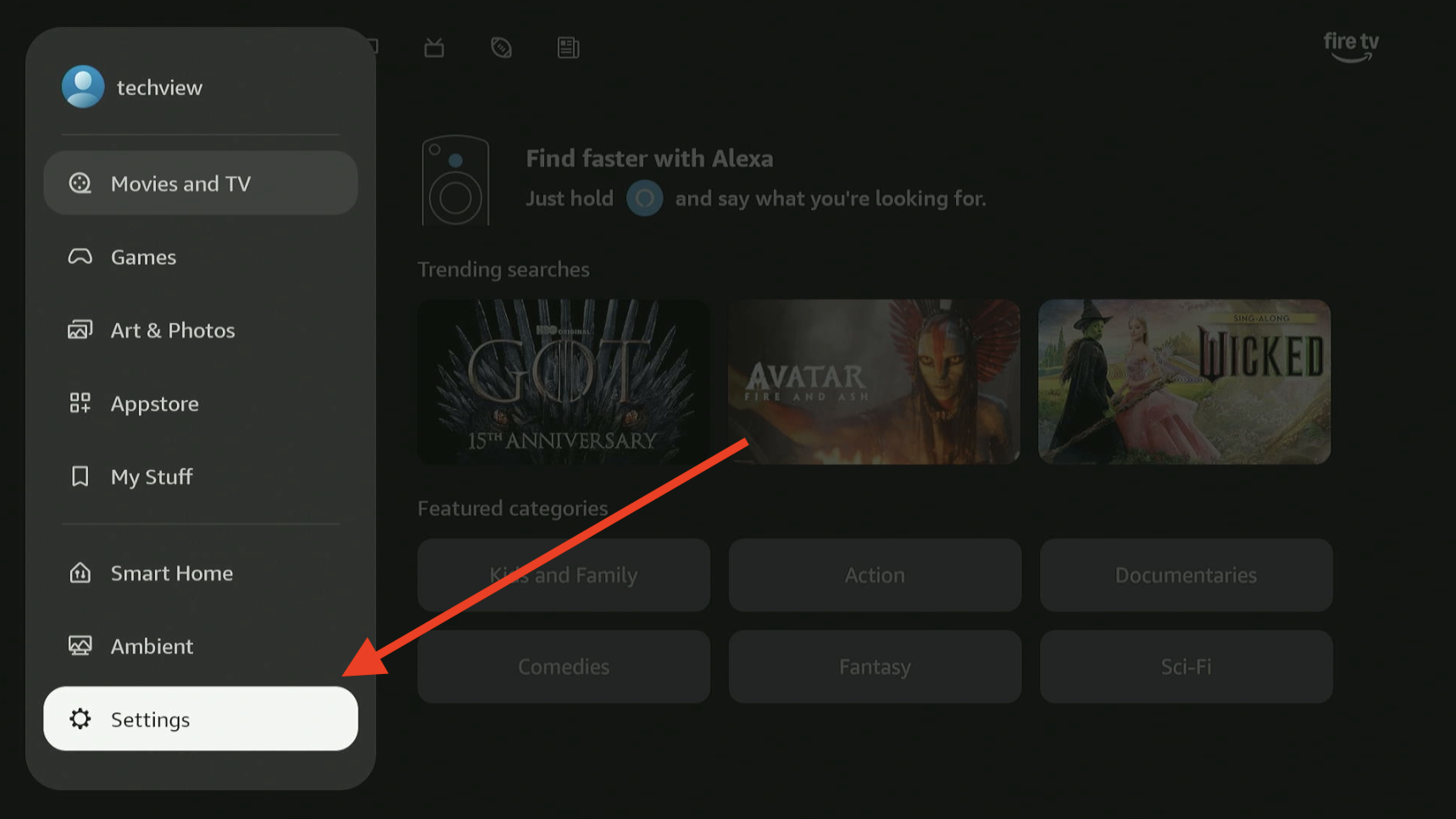
6 Select My Fire TV
Scroll down through the settings menu and click on the My Fire TV tile.
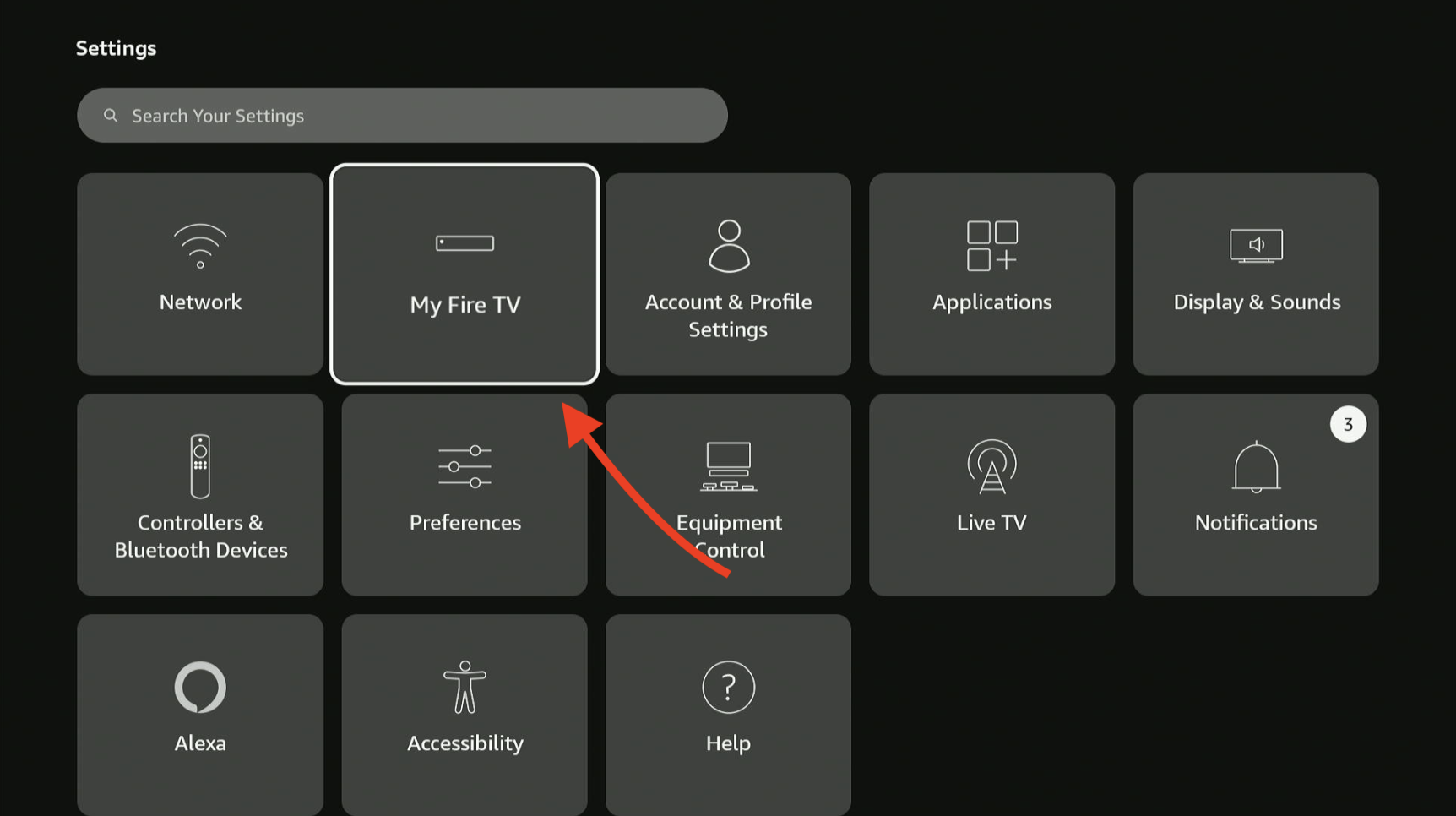
7 Developer Options
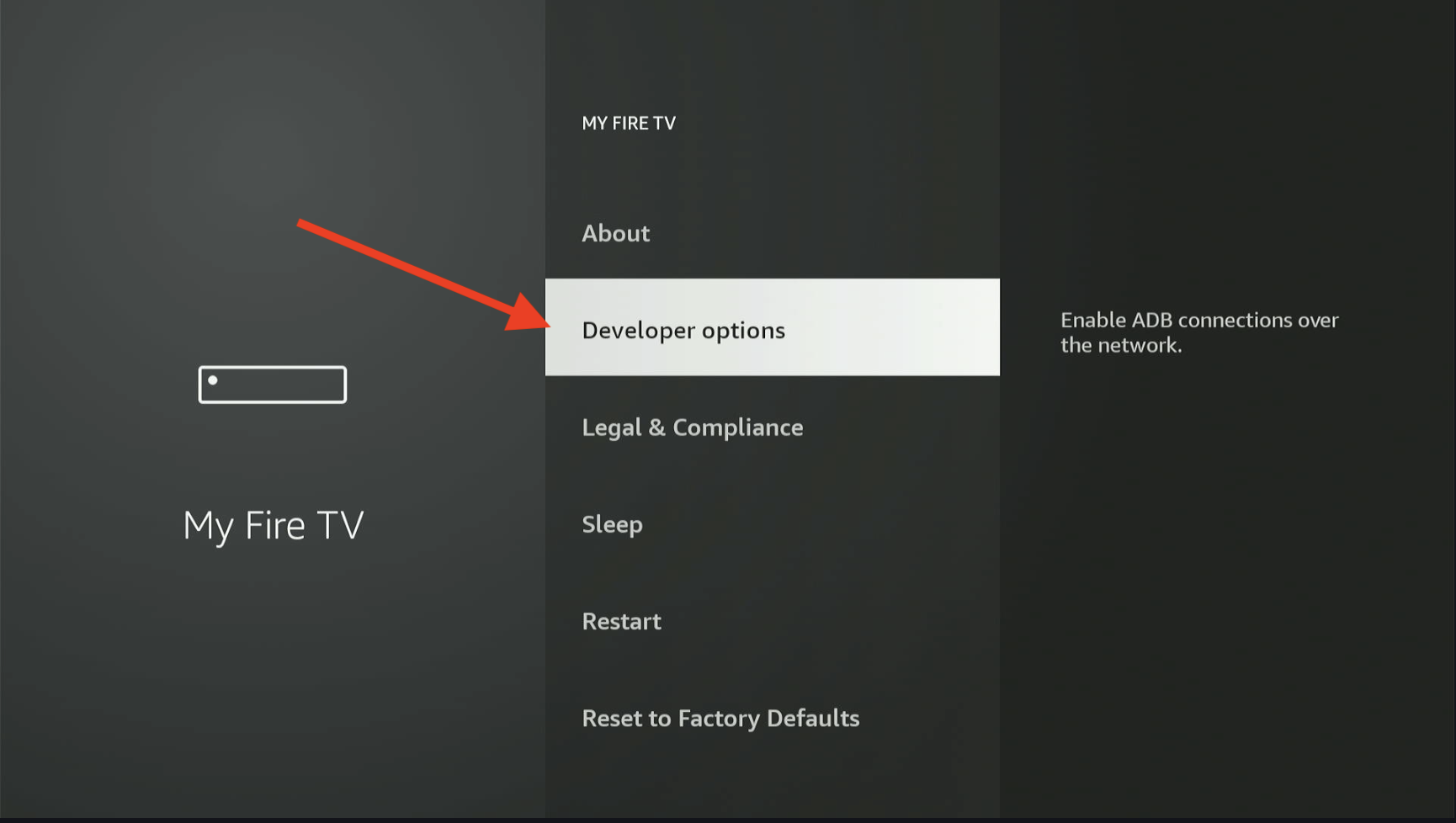
Click on Developer Options.
Note: If you do not see Developer Options, click on "About", hover over your device name (e.g., Fire TV Stick 4K), and click the OK button on your remote 7 times rapidly to reveal it.
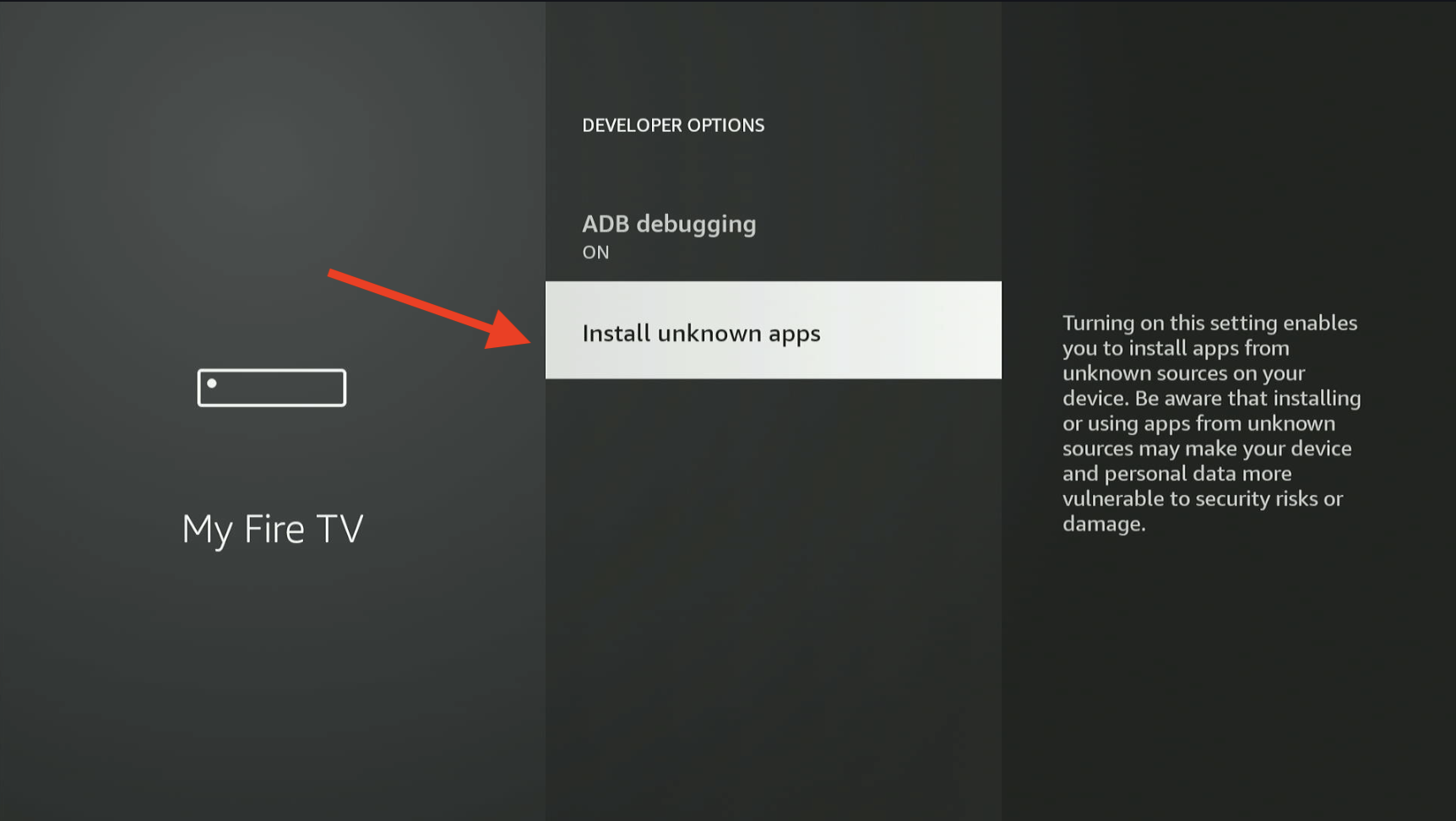
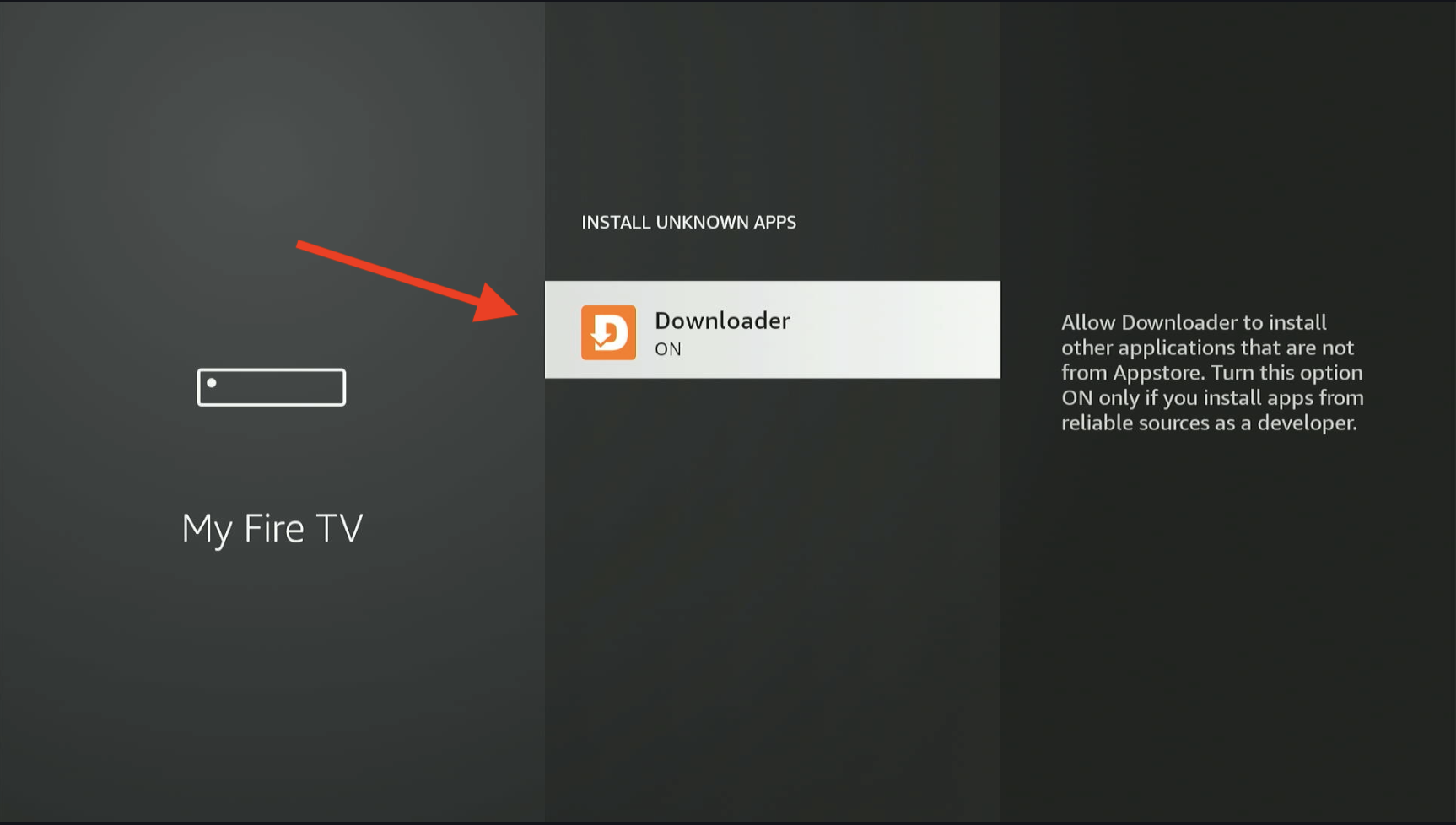
8 Install Unknown Apps
Select Install unknown apps (or "Apps from Unknown Sources", depending on your Fire OS version).
9 Enable Downloader
Find the Downloader app in the list and click it to turn its permissions to ON.
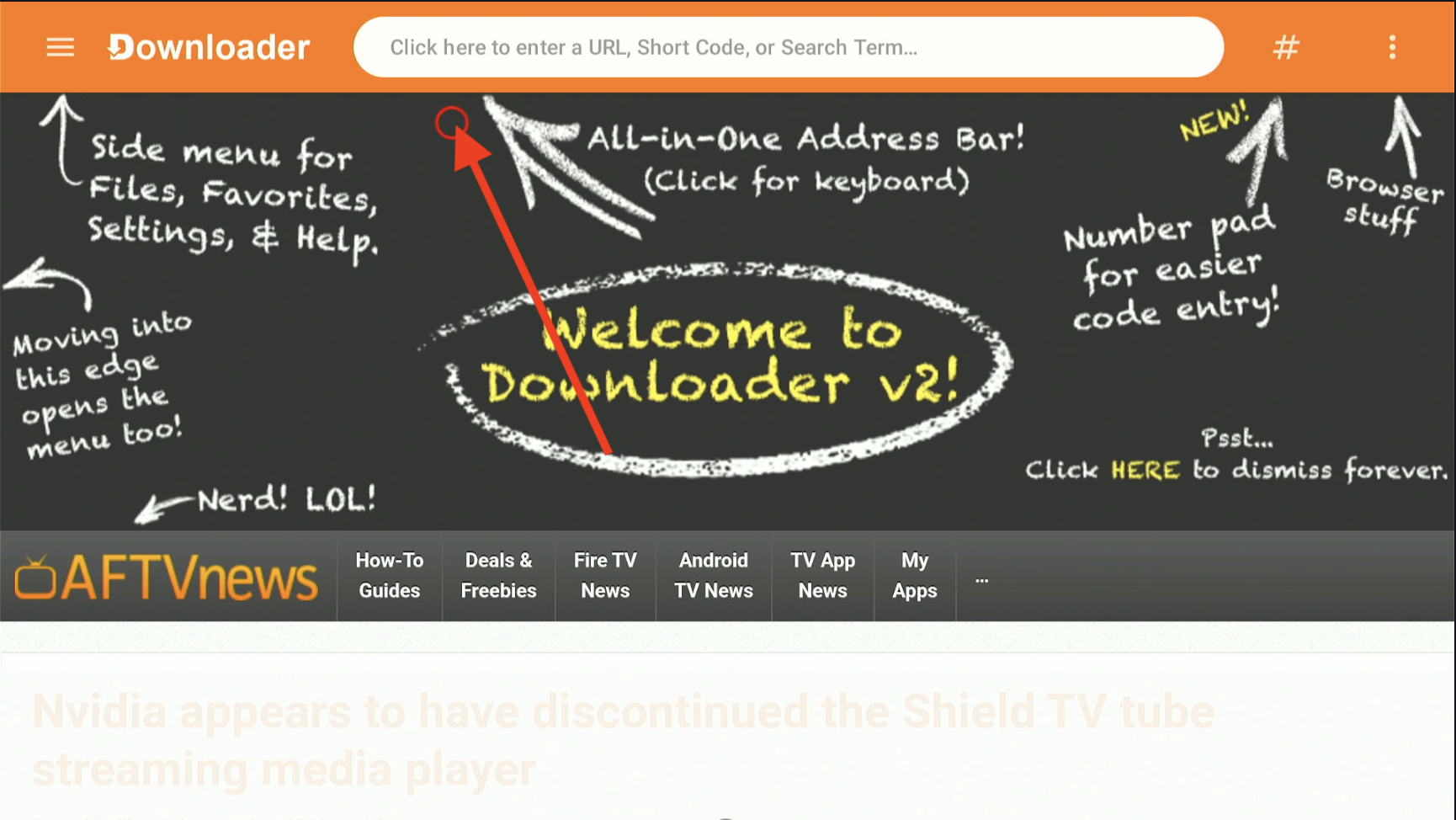
10 Open Downloader App
Return to your Firestick home screen, find the Downloader app in your app list, open it, and select the search bar field.
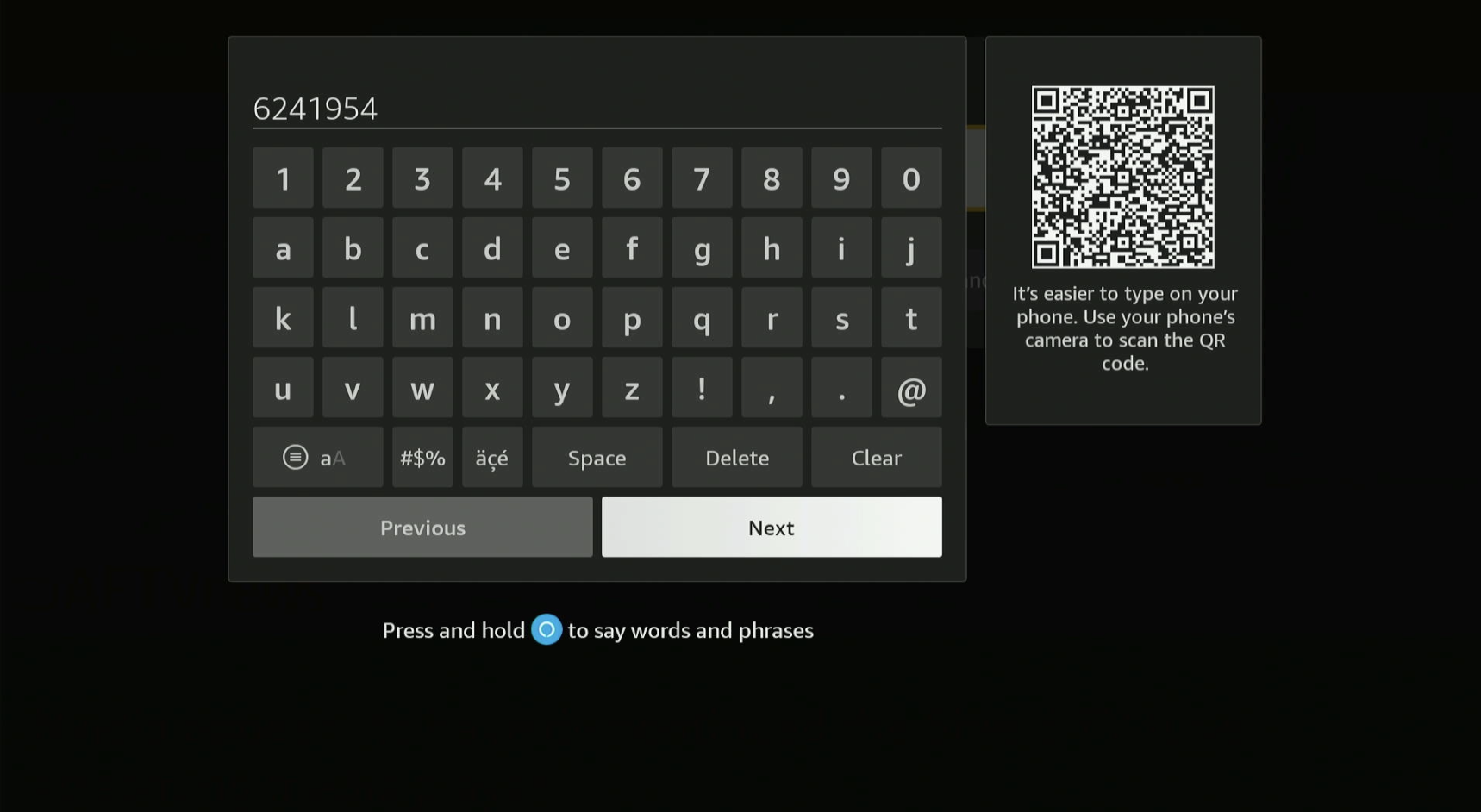
11 Enter the World Gate Code
Type the quick-download code: 3883750 and hit Go or Next.
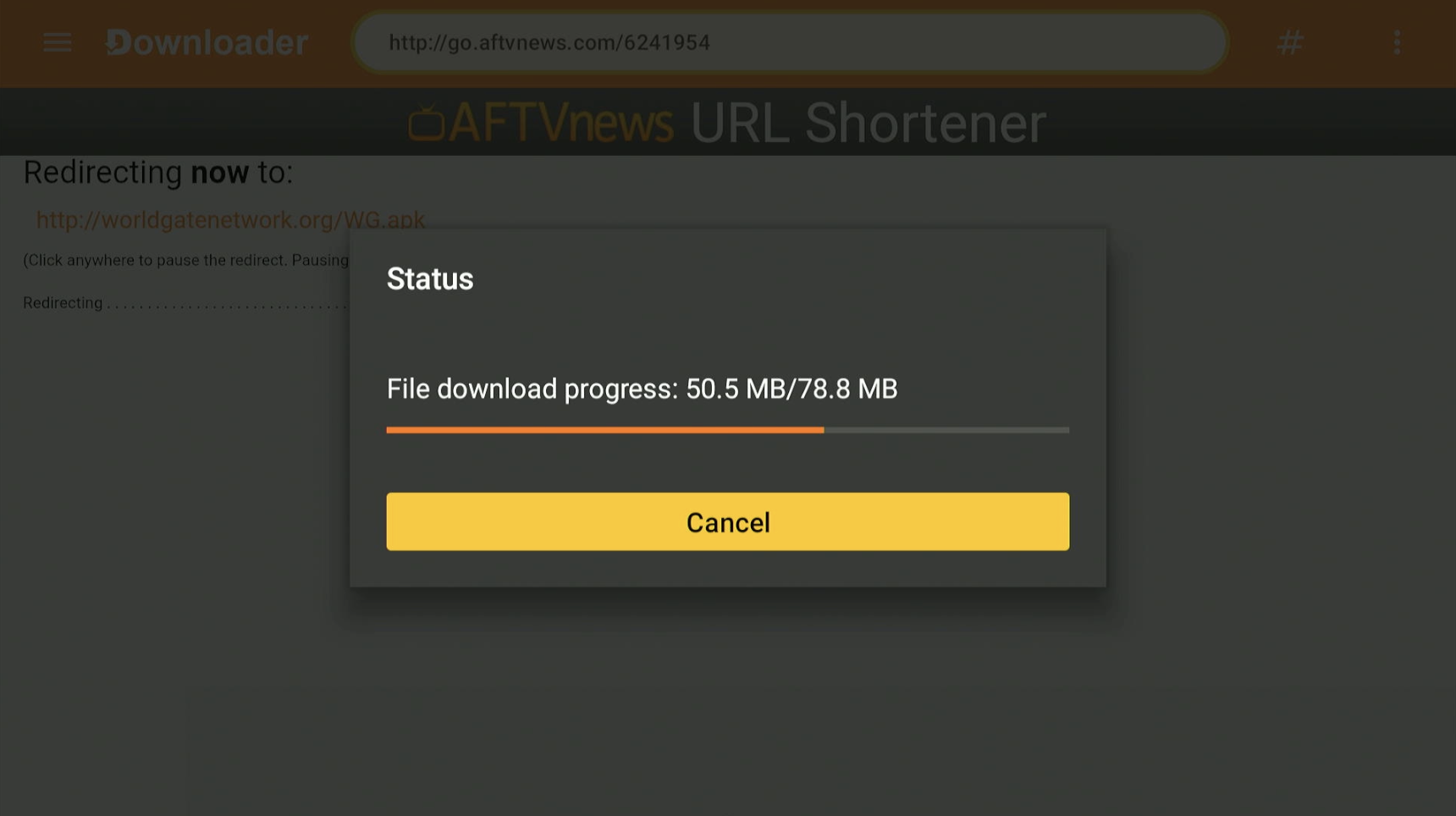
12 Wait for Download
The World Gate Network app will now begin downloading automatically. Please wait for the progress bar to finish.
13 Install the Application
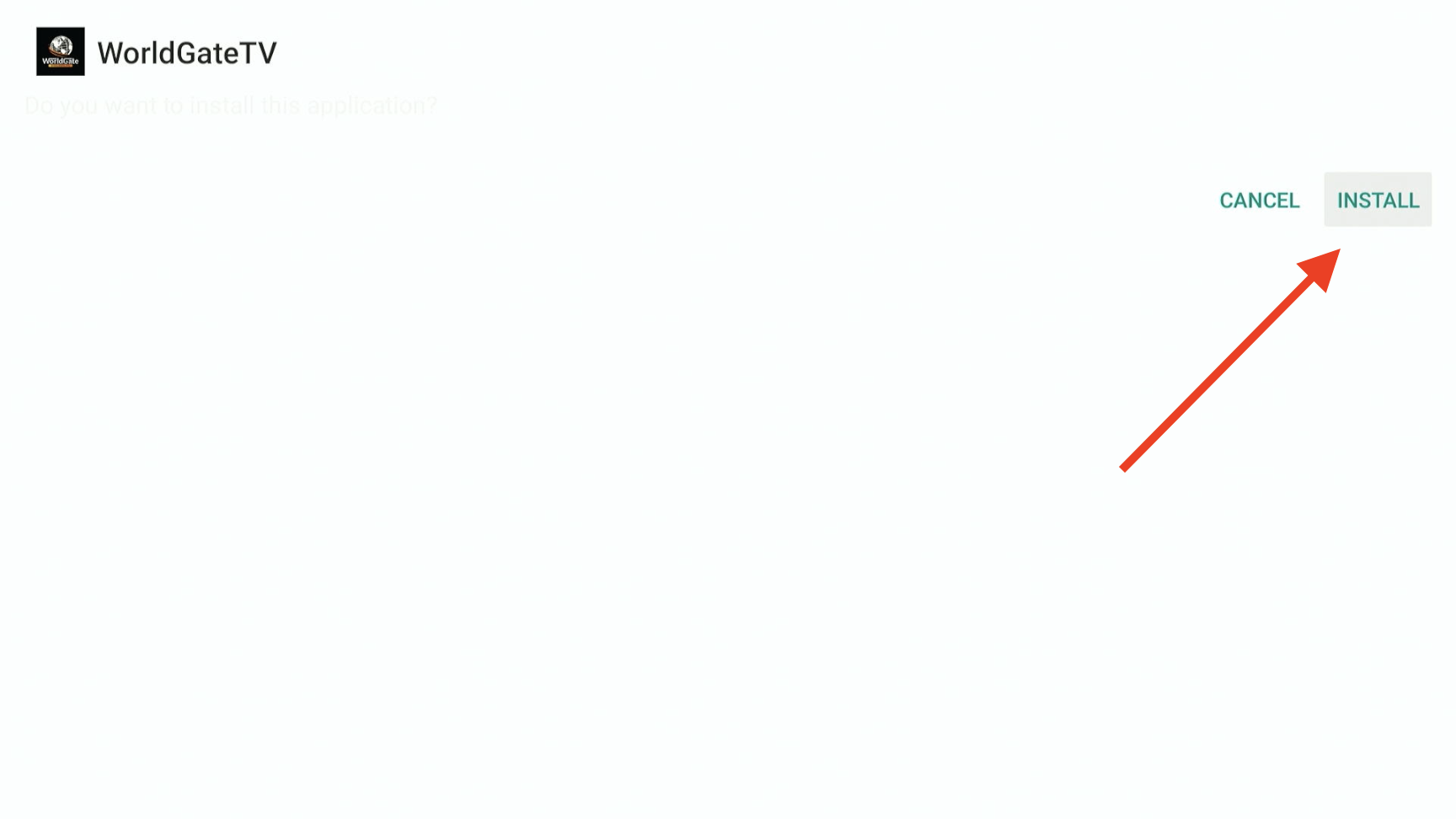
Once the download is complete, a prompt will appear on your screen. Click Install in the bottom right corner.
14 Open and Select Device Type
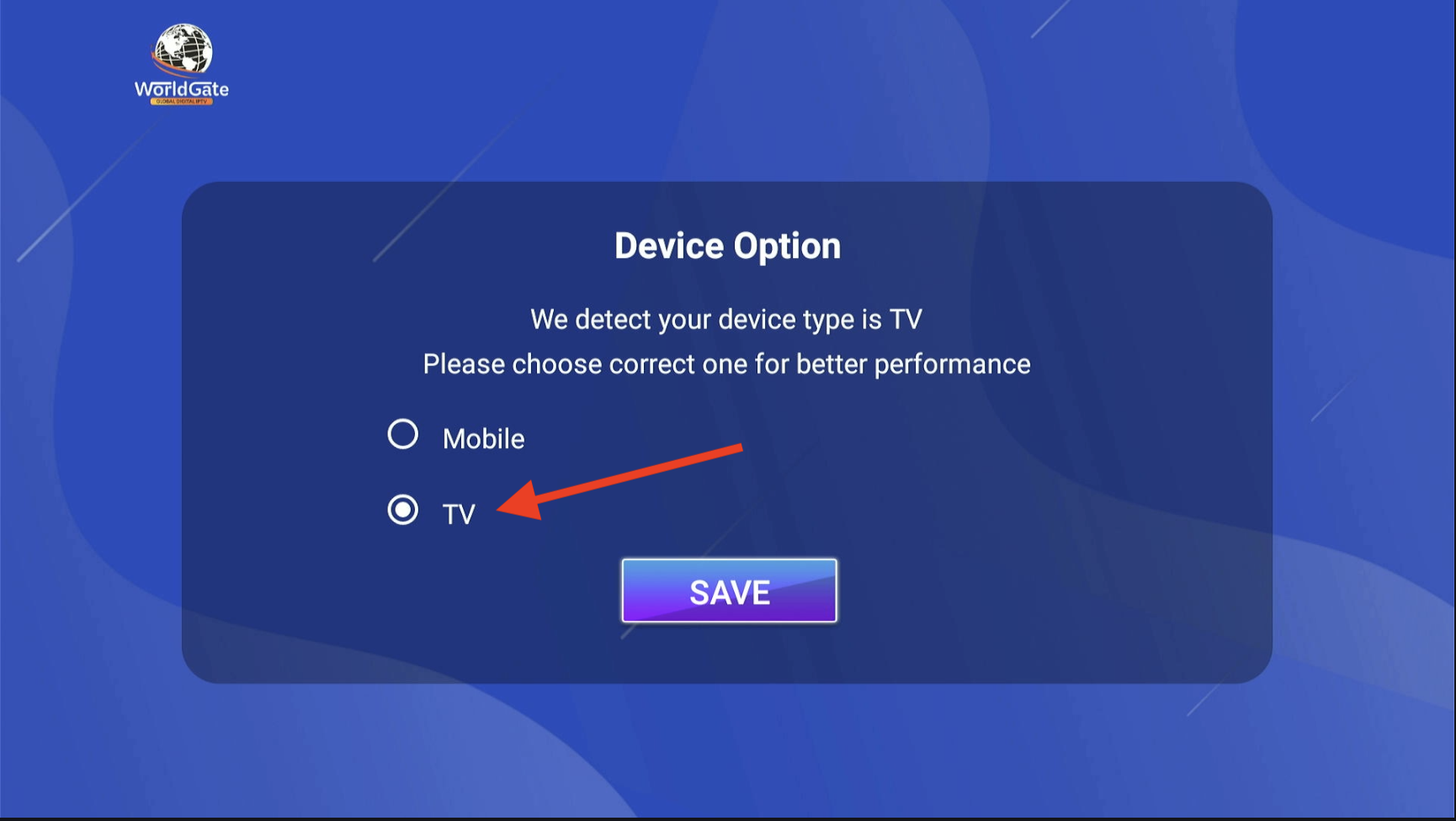
After installation, click Open to launch the app. You will see a device selection screen. Select TV for the best viewing experience on your Firestick.
15 Enter Login Details
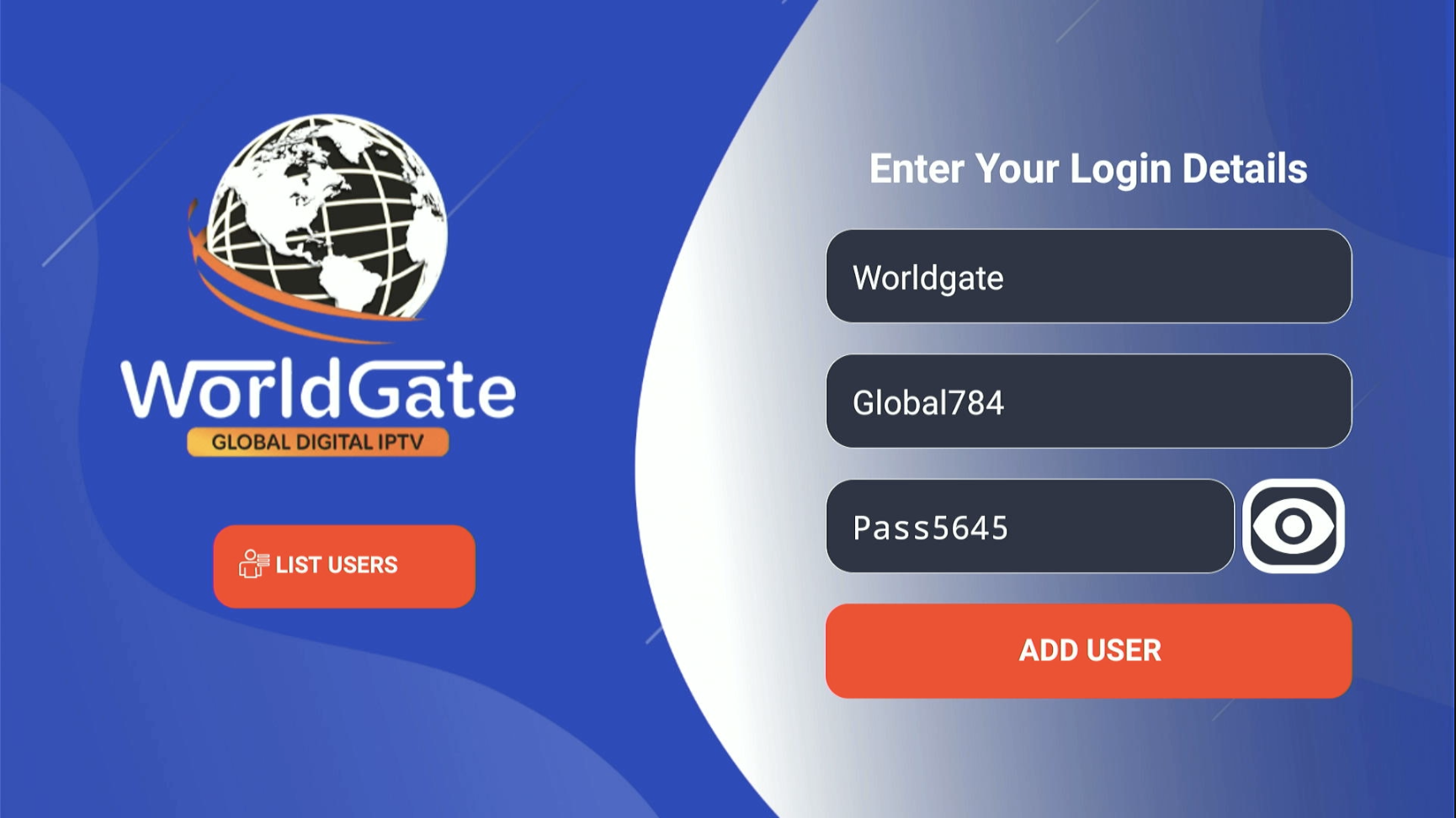
Type in the Username and Password that were sent to your email after your purchase. Once entered, hit Add User.
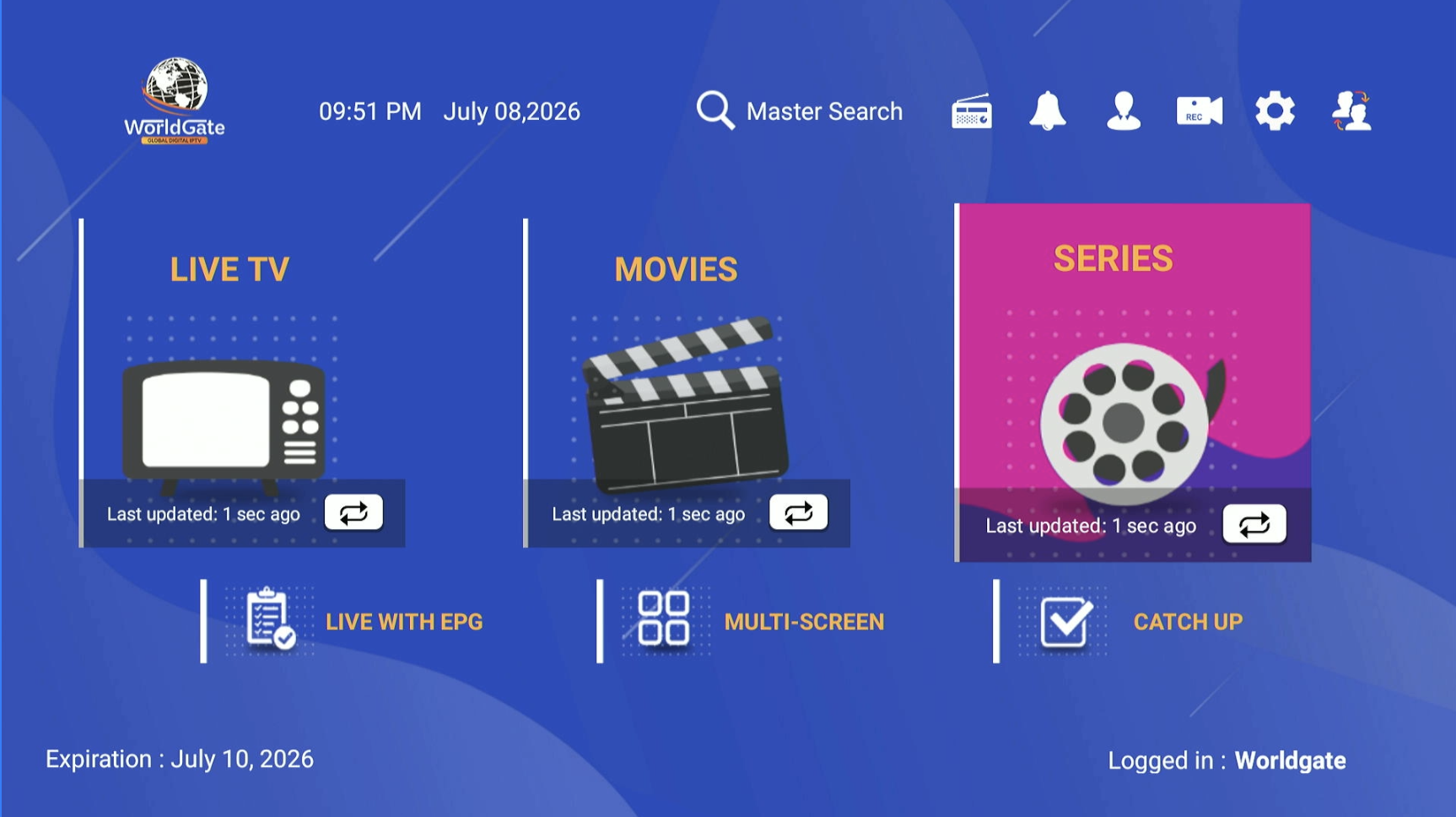
16 Download TV Data
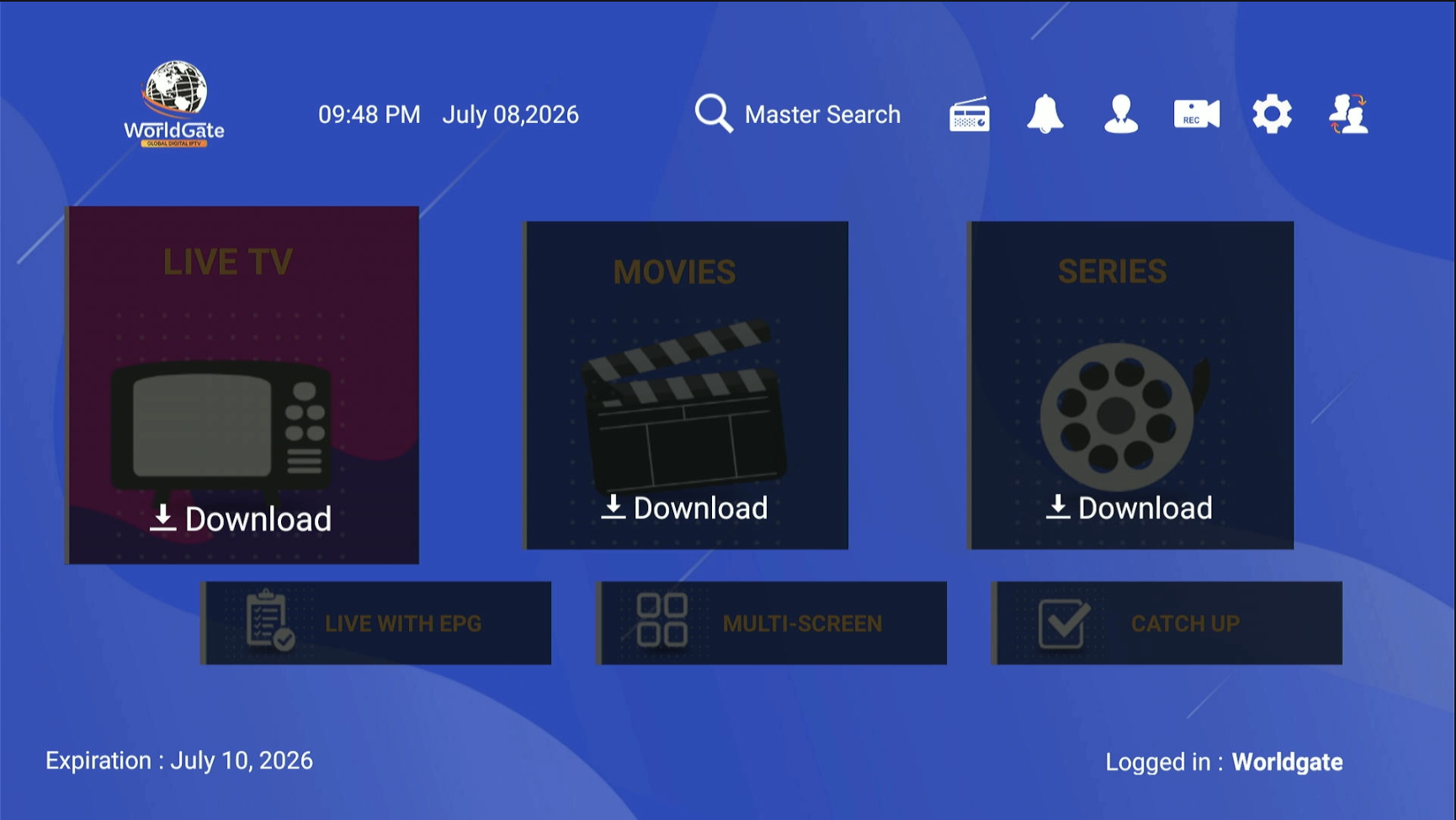
Click to download the Live TV, Movies, and Series catalogs. The app will sync your premium content (this may take a minute on the first launch).
17 Enjoy Your Service!
Setup is complete! You can now browse our massive library of 20,000+ live channels, extensive VODs, and exclusive PPV events. Enjoy your World Gate Network streaming experience.
Still Need Help?
Our expert support team is available 24/7 to assist you with installation.
Contact Support