
Welcome to the World Gate Network family!
Just got your World Gate Network plan and wondering how to set it up on your iPhone, iPad, or Apple TV? No worries! This detailed guide will walk you through the entire installation and setup process with easy-to-follow steps.
Our step-by-step tutorial covers everything—from downloading the right app to entering your subscription details—ensuring a seamless setup. Once completed, you’ll have access to a vast selection of live TV channels, the latest movies, and binge-worthy series.
Follow this guide carefully to enjoy a hassle-free installation and dive straight into an exceptional streaming experience on your iOS device.
A proper setup is the key to unlocking endless entertainment right at your fingertips!
Install & Set Up an IPTV Player for World Gate TV on iOS
Since the official World Gate Network app is not currently available for iOS devices, we’ll be using the IPTV Smarters player app instead. It’s user-friendly and readily available on the App Store. Follow the step-by-step guide below to download and set it up seamlessly.
Step 1: Downloading the App.
Open the App Store on your iPhone, iPad, or Apple TV, in the search bar, type IPTV Smarters pro and tap Search.
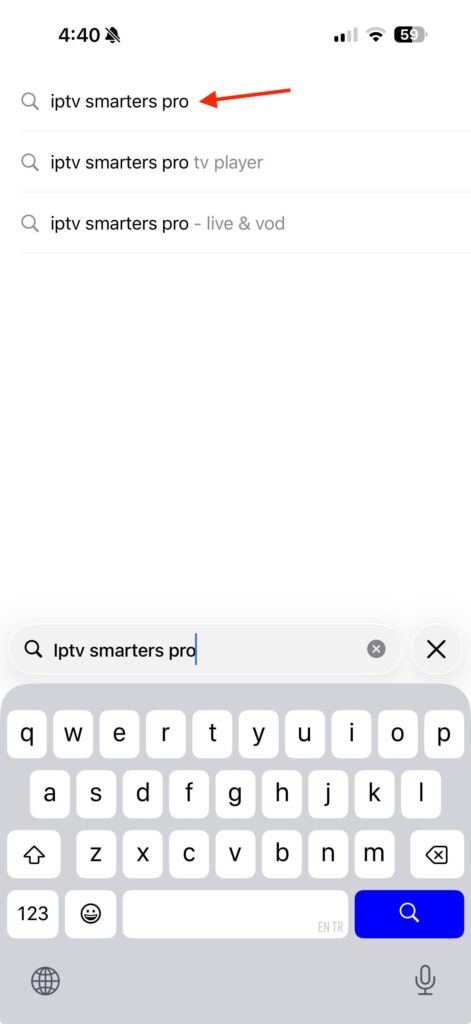
Step 2: Locate The Smarters App
In the search results you will find the IPTV Smarters Lite there.
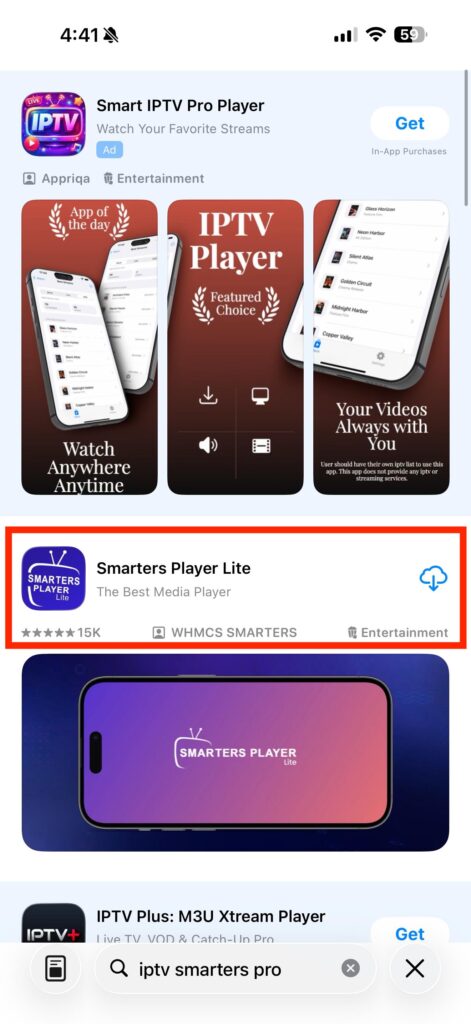
Once you find the Tap Get or Install. After clicking Get, please wait a few moments for the download to finish.
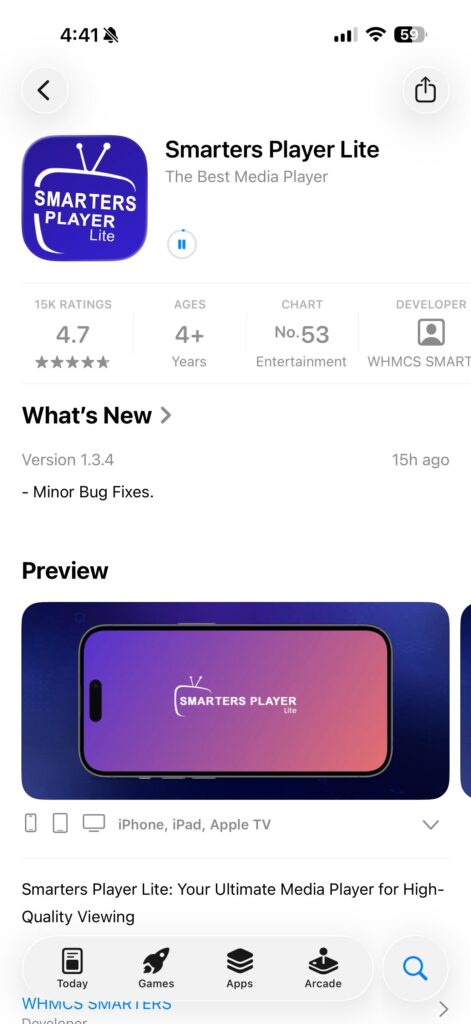
Once the download is complete, tap Open to launch the app on your device.
After launching the app, you will see License Agreement Simply click “Accept”
On the next screen you need to choose the Playlist type. Click on the “Xtream Code” option.
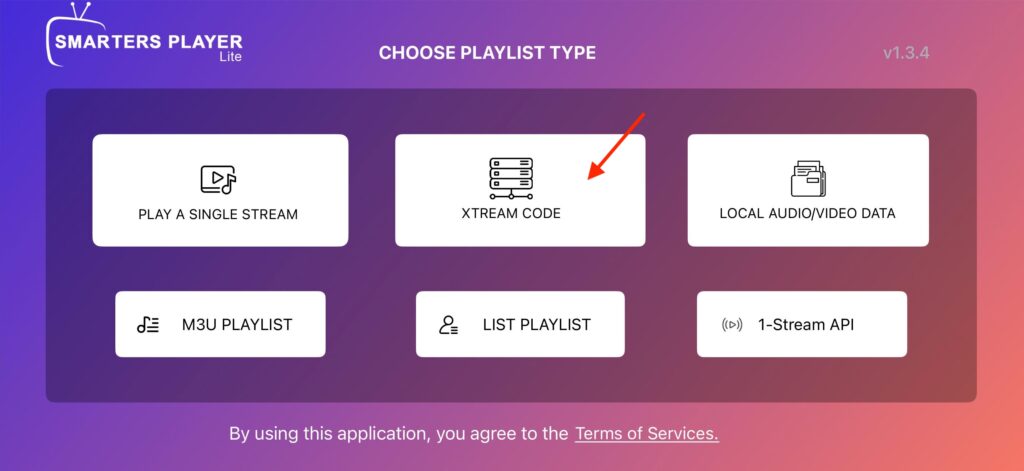
Now you will be prompted to enter your Playlist details. (These Details have been sent to your email after your purchase)
Now Enter your playlist details:
- Playlist Name: Worldgate.
- Username: Enter the Username provided in your email.
- Password: Use the Password provided in your email.
- URL: Use the Portal URL provided in your login details.
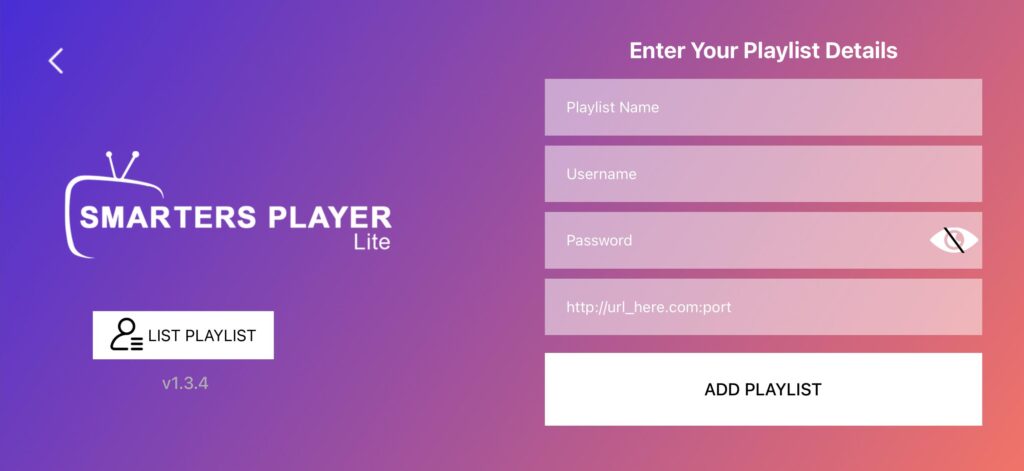
Once you have entered the Login Details Click on “Add Playlist“
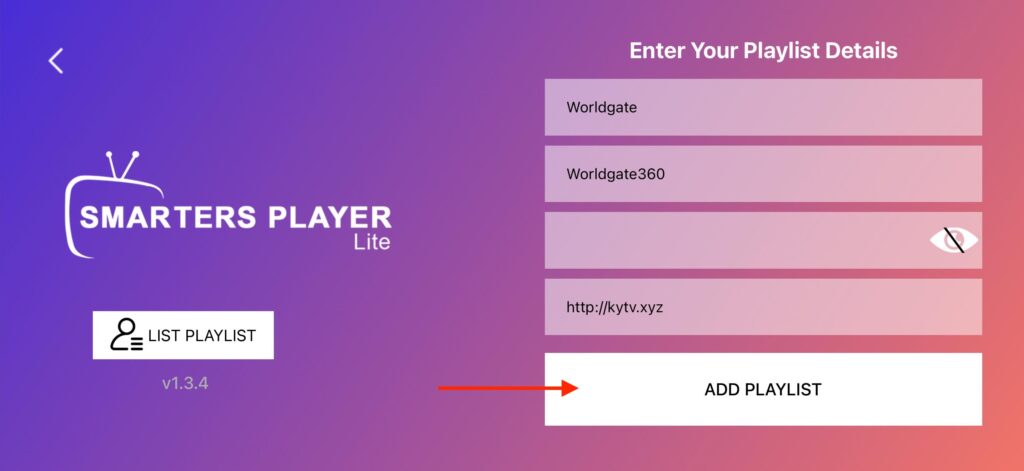
Now you will be logged in successfully.
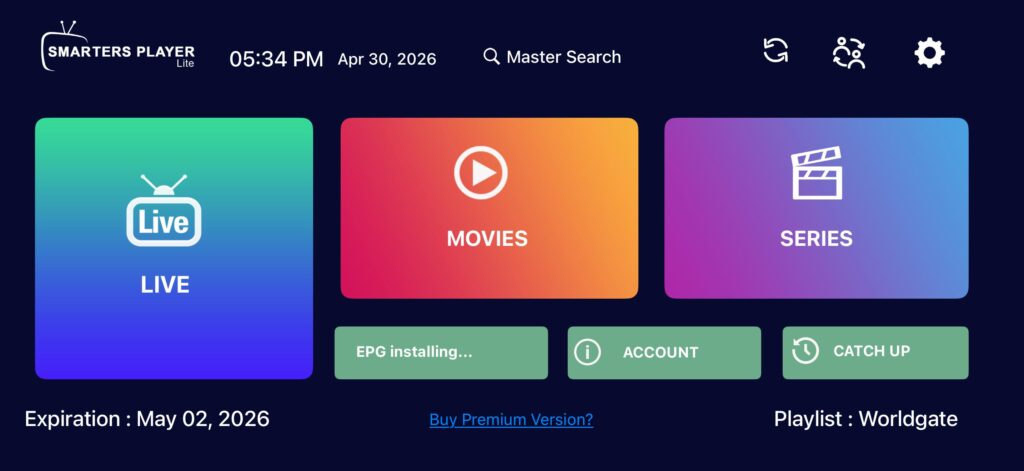
You will see Live TV, Moives, Series Categories click on each to load them for the first time if asked. Once the download process is complete simply go to the Live TV, Movies or series to play your favorite program.
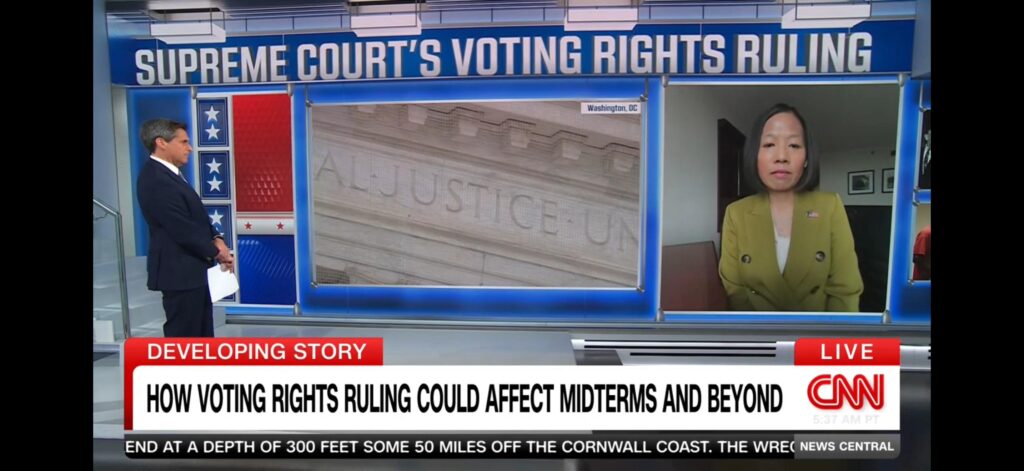
That’s it! Your setup is now complete.
If you face any issues in the process or get confused at any point then no need to be worried about it, simply use our email or open the ticket on our website for the setup help our team is 24/7 available to assist
